

SD Card Formatting
This guide will help you properly format your SD card to the FAT32 file system using built-in Windows tools. This is necessary for correctly writing the firmware image.
Before you start
Connect the SD card to your computer and ensure it is detected by the system.
Back up all important data — formatting will erase all contents.
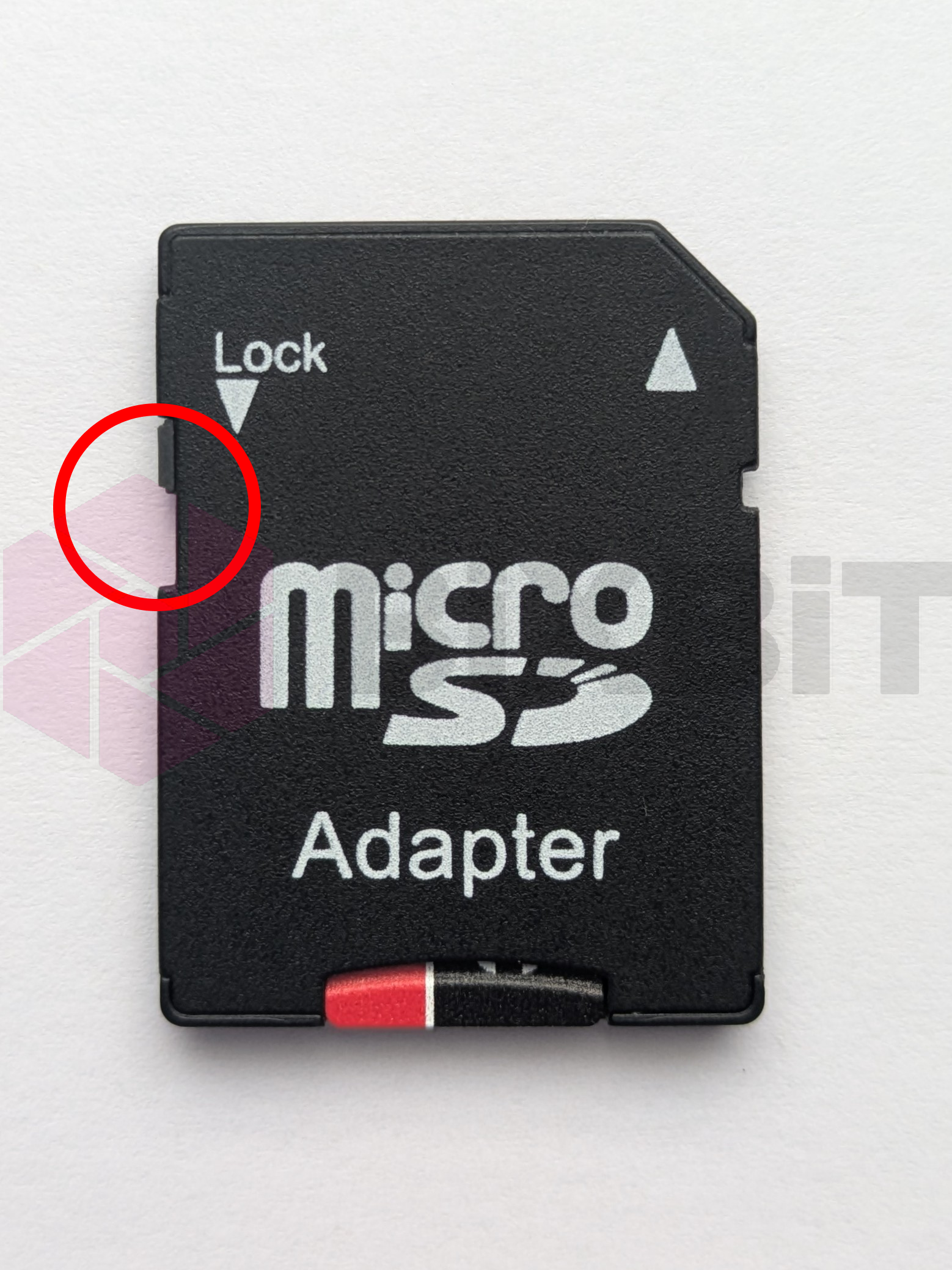
If you are using a microSD adapter, make sure the write-protection switch is unlocked.
Step 1: Opening "Disk Management"
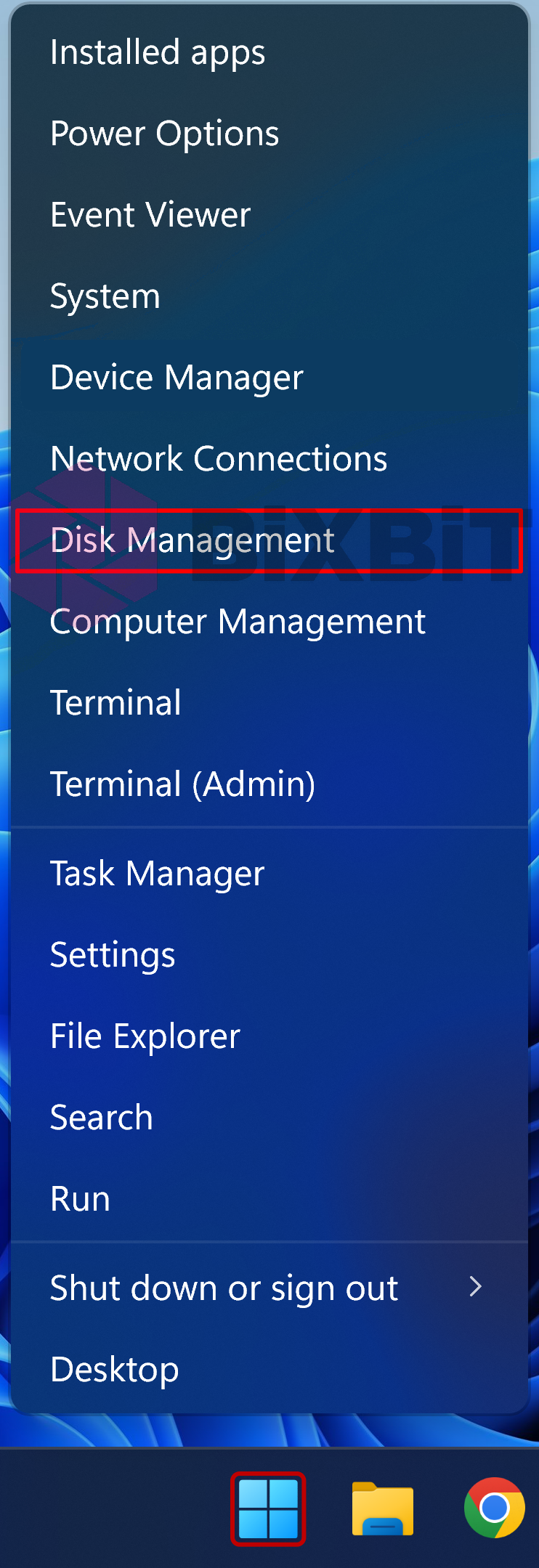
Right-click on the Start button (Windows logo).
Select "Disk Management".
Step 2: Deleting Existing Partitions/Volumes
Locate your SD card in the list of disks (typically labeled as "Removable").
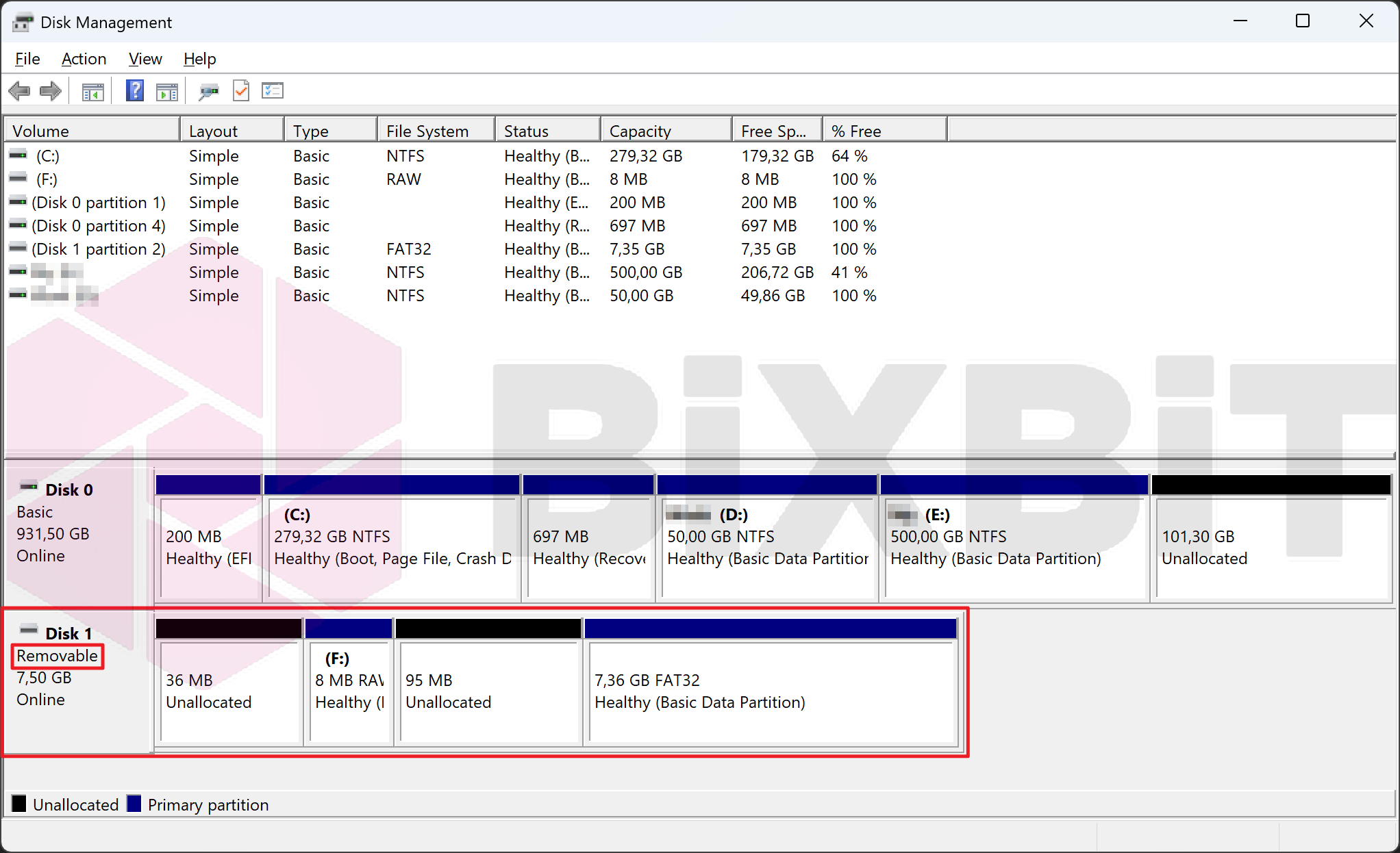
If the card has any existing partitions:
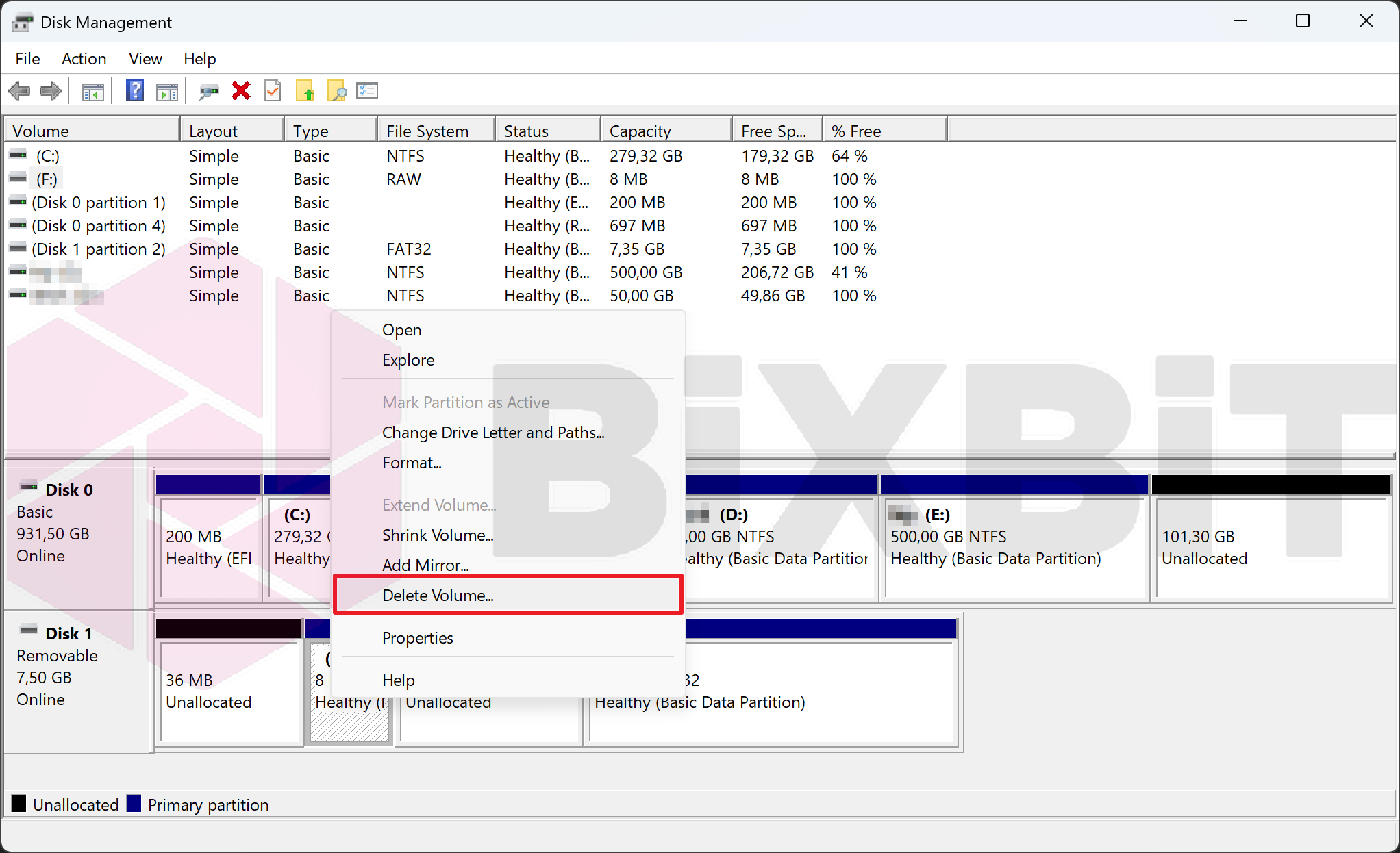
Right-click on each allocated partition/volume.
Select "Delete Volume...".
Confirm the volume deletion.
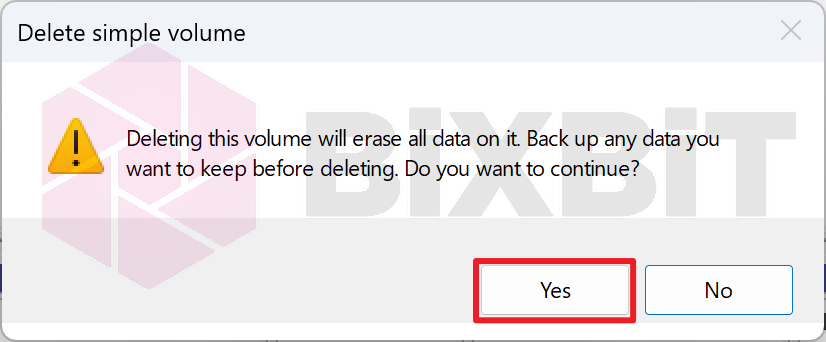
If the SD card has multiple volumes, repeat for all volumes until the entire card space shows the status "Unallocated".
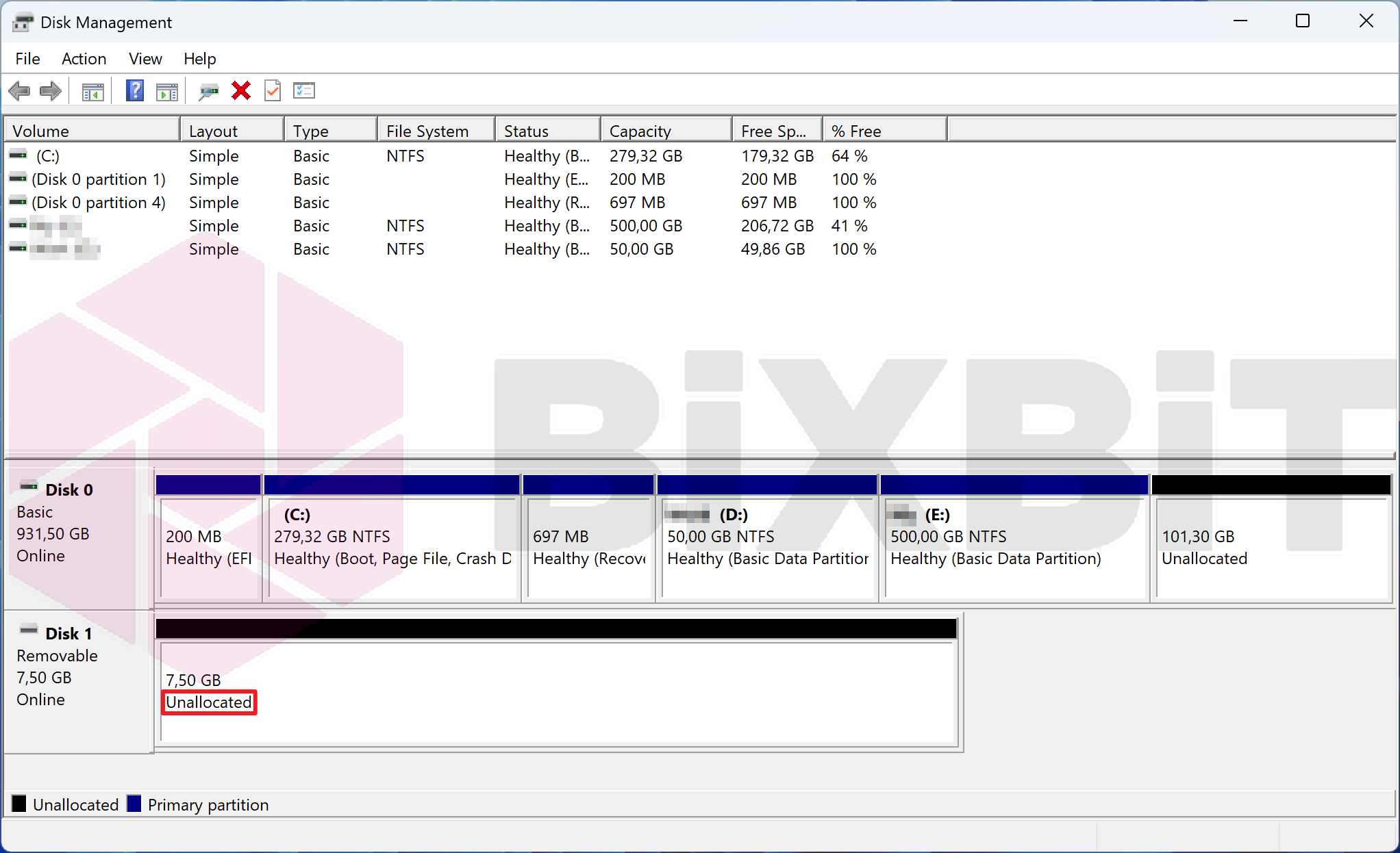
Step 3: Creating a New Partition/Volume
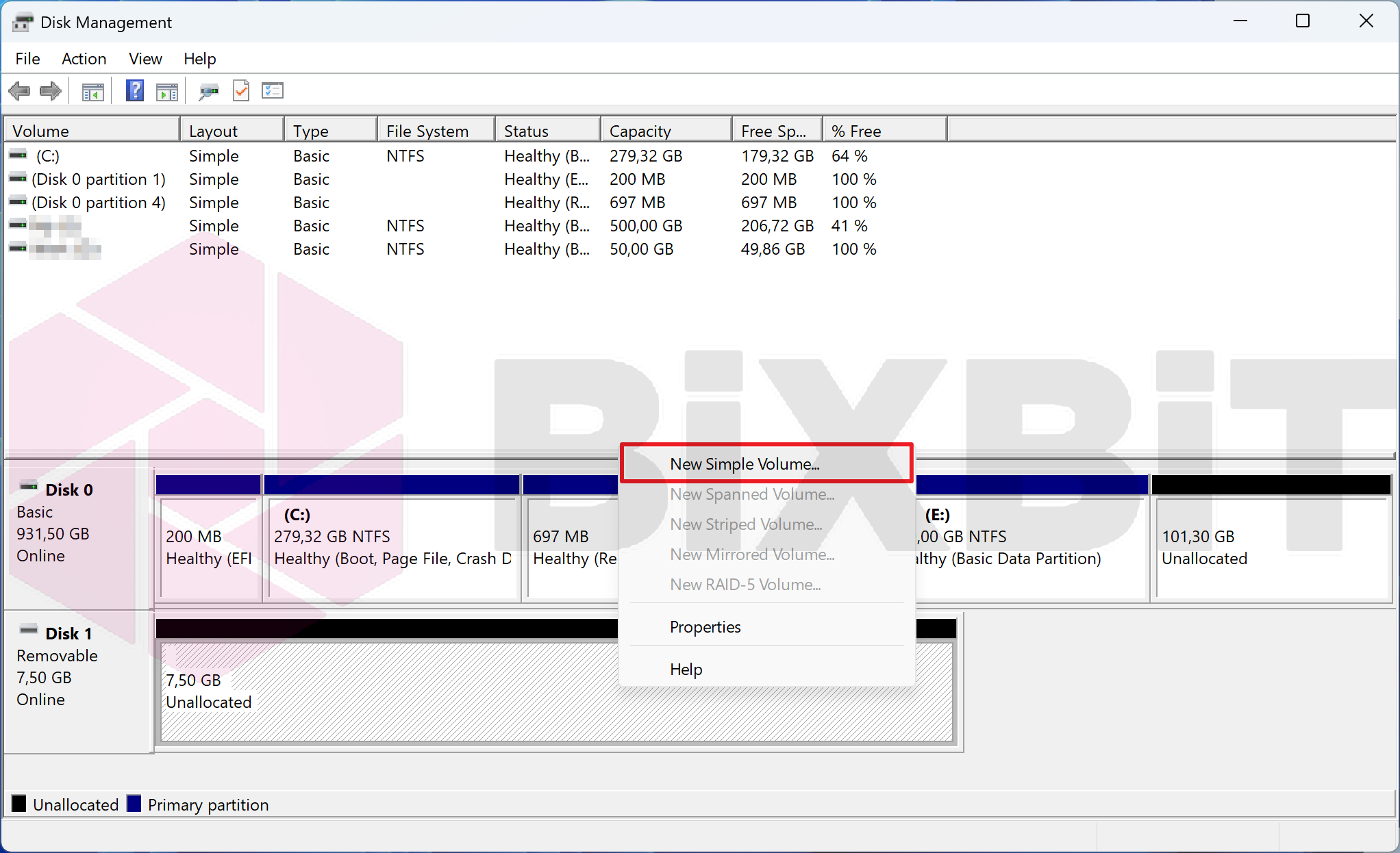
Right-click on the unallocated space of the SD card.
Select "New Simple Volume...".
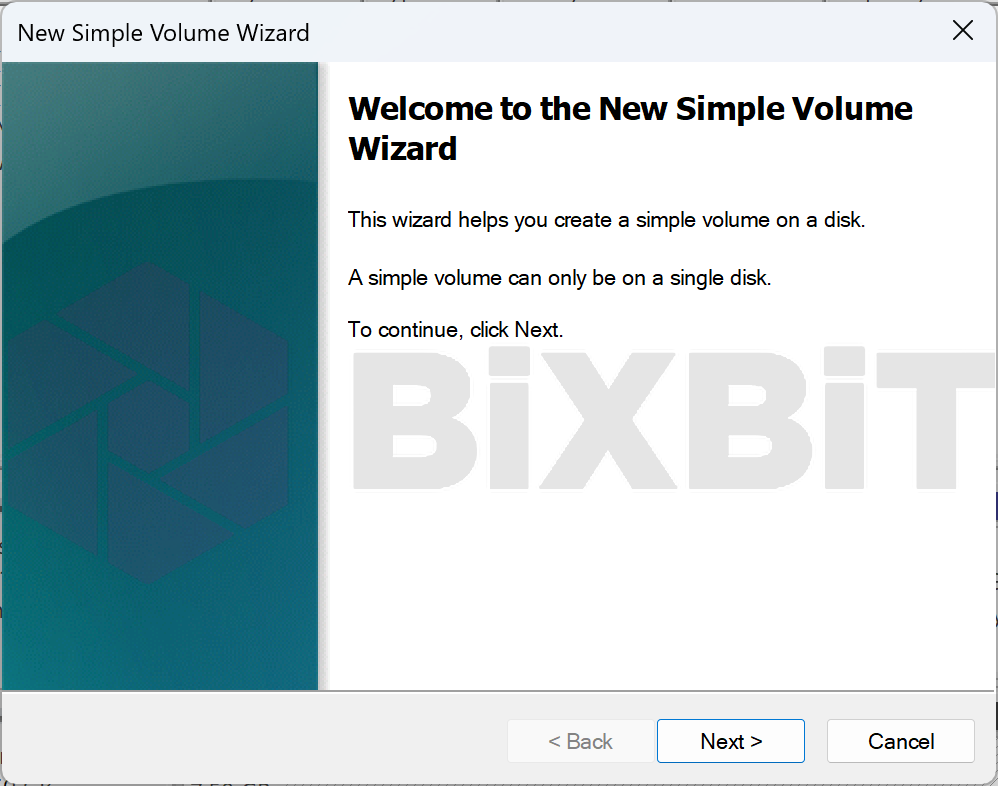
In the volume wizard that opens:
- Click "Next >" on each step.
 2. Specify the maximum volume size.
 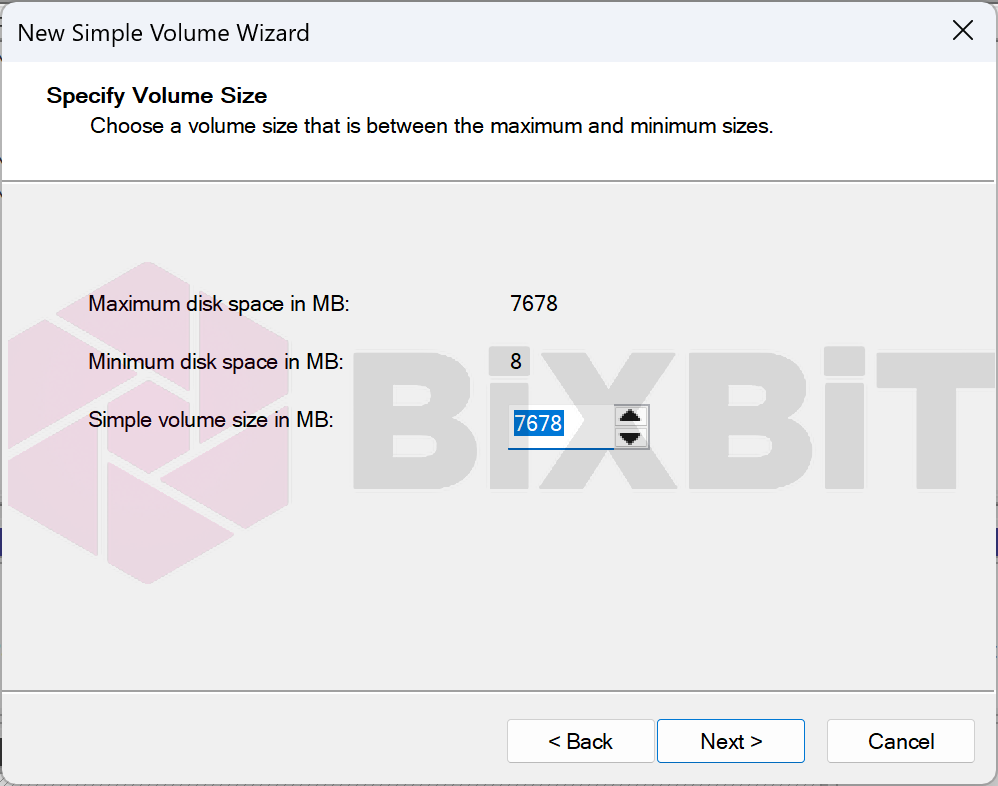 3. Assign a drive letter (e.g., F).
 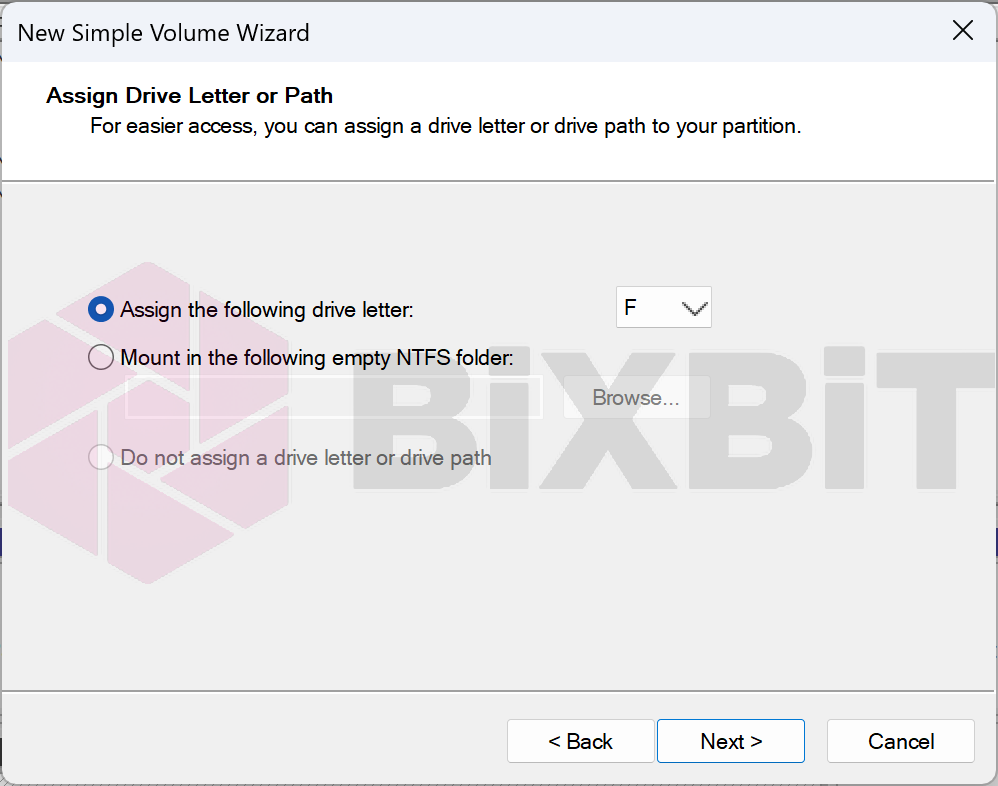 4. Select the FAT32 file system and enable "Perform a quick format".
 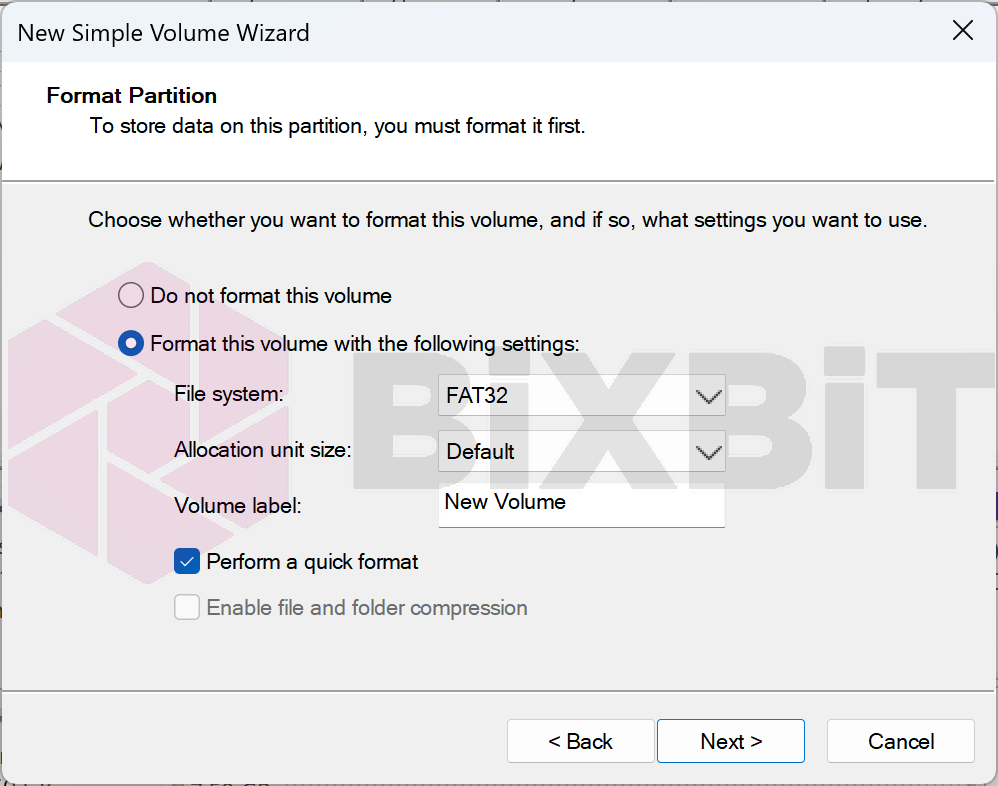 5. Click "Finish" to complete.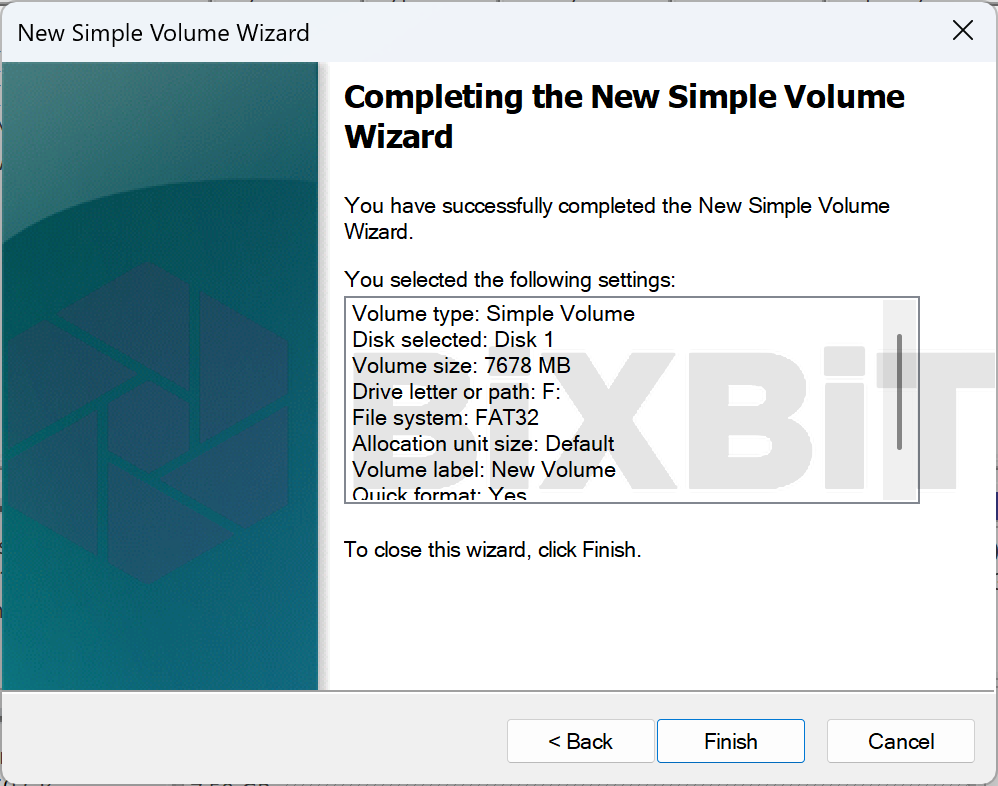
Result
After formatting is complete, the SD card should appear as a single partition with the FAT32 file system and have the status "Healthy (Basic Data Partition)".
The disk should look like this:
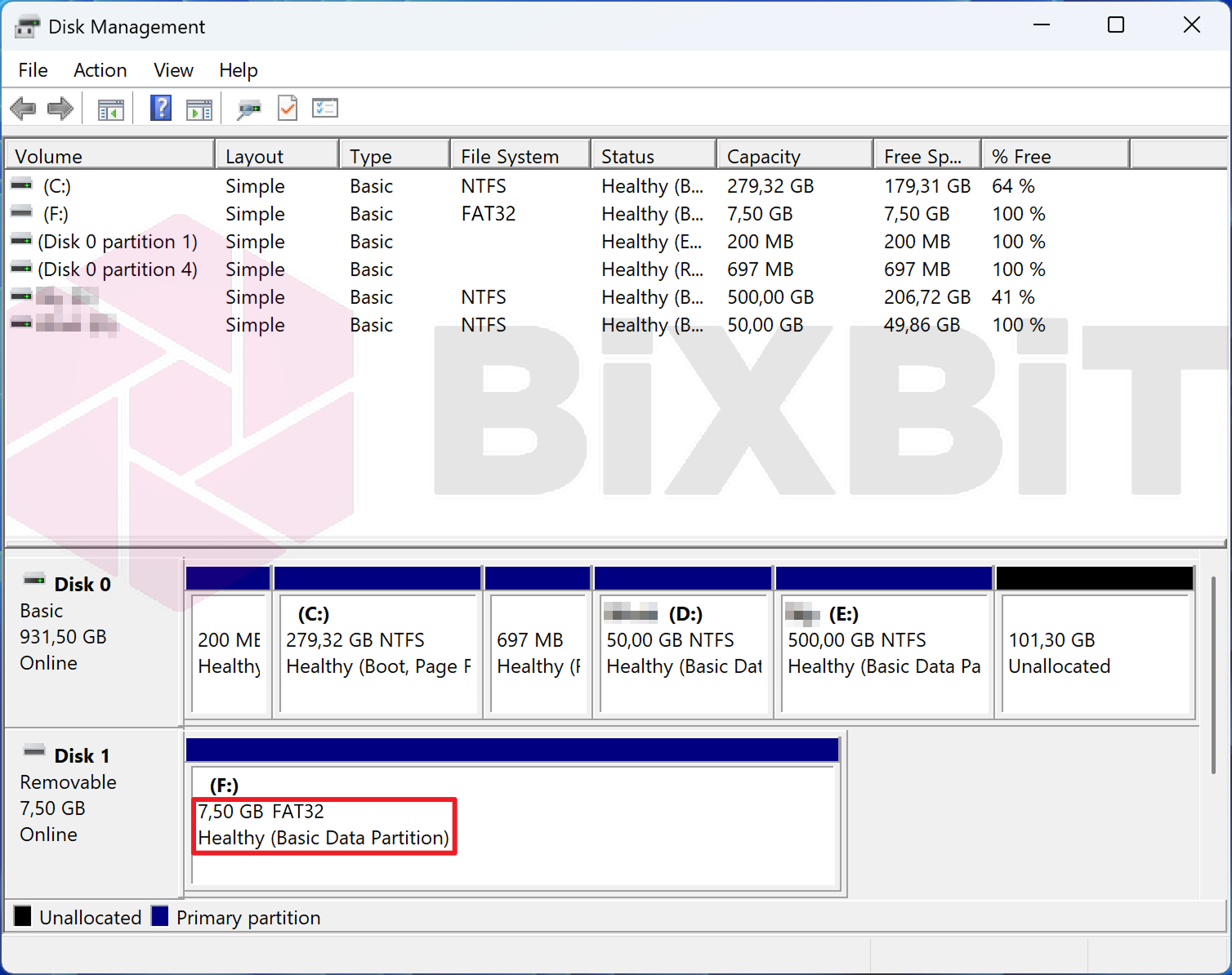
SD card formatting is complete.